
Customise the website chat
Change how the chat bubble looks and ask visitors for their details first.
In Salescom: Inboxes > (website inbox) > Widget Builder
Open Inboxes in the sidebar and pick your website inbox.
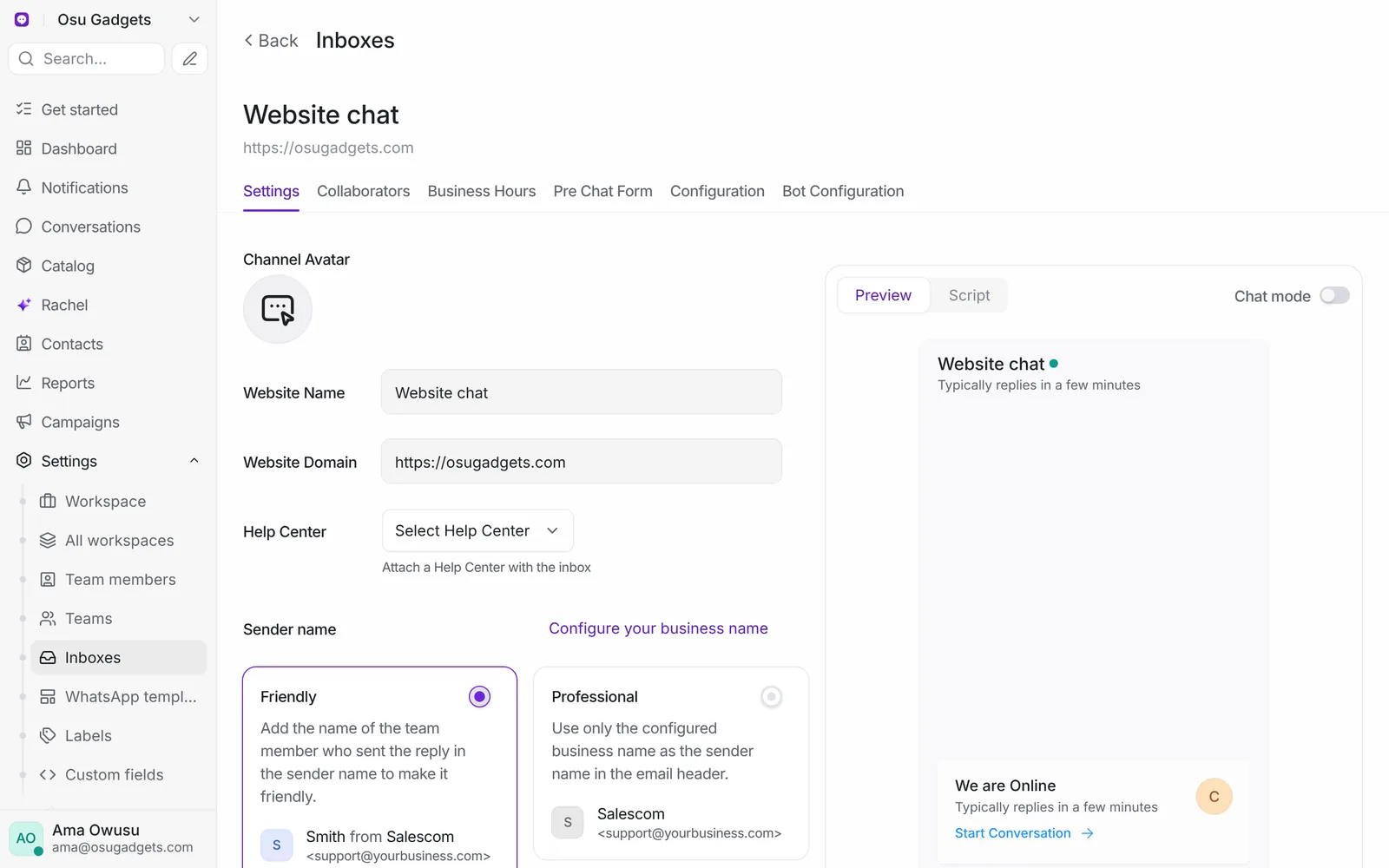
Widget Builder
Open Widget Builder to change the chat bubble. The preview shows each change as you make it.
- Website Name and Website Avatar, shown at the top of the chat.
- Welcome Heading and Welcome Tagline, the first thing visitors read.
- Reply Time: tell visitors whether you usually reply in a few minutes, a few hours or a day.
- Widget Color.
- Bubble: put it on the left or right, and choose a plain bubble or one with a Launcher Title like "Chat with us".
Press Update Widget Settings to save. Your site picks up the changes without a new script. To see the script again, switch the preview to Script.
Ask for details before the chat
Open Pre Chat Form to ask visitors for their name, email or phone before they can write.
- Set Enable pre chat form to Yes.
- Write a short Pre chat message, for example "Tell us how to reach you if we get cut off".
- Tick the fields you want, and mark the ones that are required.
- Save.
Every extra required field means some visitors give up, so ask only for what your team actually uses.