
Take and make phone calls
Answer calls in the browser from a Twilio number or WhatsApp, and see every call on the Calls page.
In Salescom: Inboxes > Add inbox > Voice
Salescom can ring your team in the browser when a customer calls, and lets them call customers back. Calls work on every plan.
Who pays for call time: Salescom doesn't charge for calls. Meta bills WhatsApp call minutes to the payment method in your Meta Business account, and Twilio bills you for Twilio call minutes and the phone number. Check Meta's and Twilio's prices before you turn calls on.
Calls from a Twilio number
- In Twilio, create an API key (Account > API keys & tokens) and note its SID and secret.
- In Salescom, open Calls in the sidebar and press Set up voice channel (you'll only see the call channels there), then pick Voice. You can also go to Inboxes in the sidebar, press Add inbox and pick Voice.
- Enter the phone number, your Twilio Account SID and Auth Token, and the API key SID and secret.
- Choose which team members can answer calls.
Salescom points the number at itself, so you don't need to paste any webhook into Twilio. An SMS inbox you already have can take calls too: open it, go to the Voice tab and switch calls on.
Calls on WhatsApp
Customers call the same WhatsApp number they already message you on. The number has to be connected through Meta, not 360dialog. Meta bills you for WhatsApp call time, on the payment method in your Meta Business account.
- Open Calls in the sidebar and press Set up voice channel, then pick WhatsApp Call.
- If you've already connected a WhatsApp number, press Turn on calls next to it. You don't need to connect it again.
- If you haven't connected one yet, fill in your WhatsApp number's details and calling is switched on when it's connected.
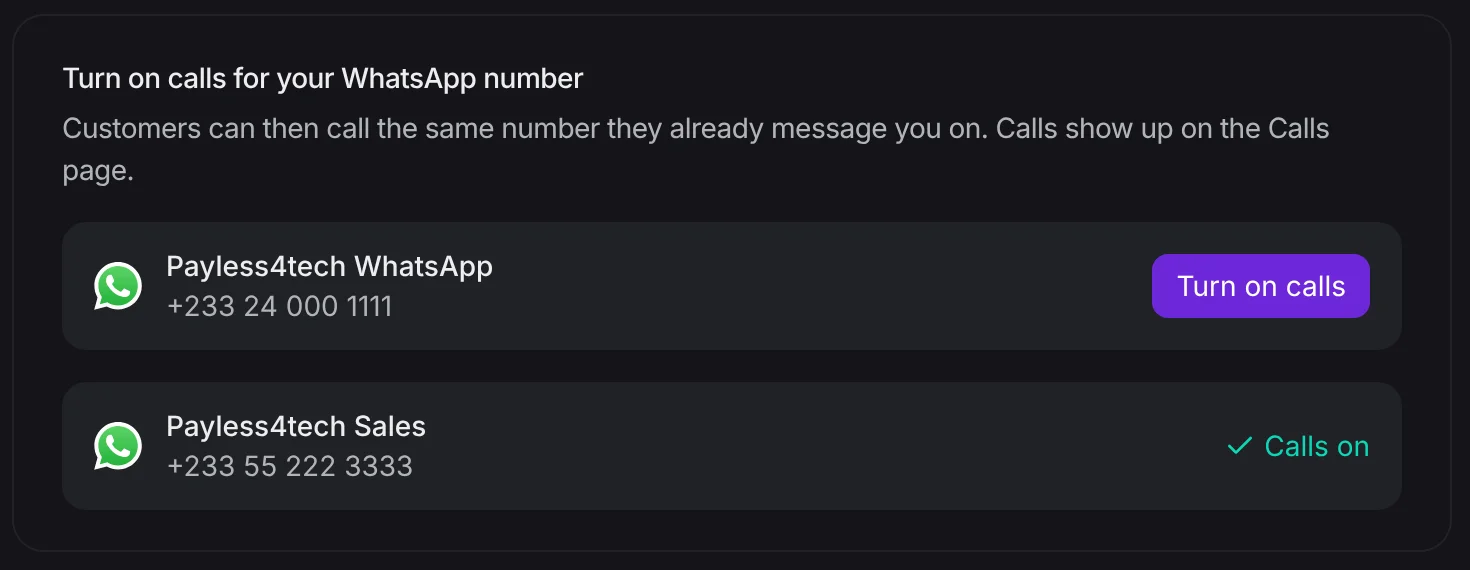
You can also switch calling on or off later: open your WhatsApp inbox from Inboxes in the sidebar and go to the Calls tab.
Before you can call a customer on WhatsApp, they have to say yes. The first time you press call, Salescom sends them WhatsApp's "allow calls" message. When they accept, press call again. You can change the wording of that message on the Calls tab.
Answering and calling
When a customer calls, a card pops up in the bottom-right corner of whatever page you're on. It shows who is calling, their number and where they are. Press the green button to answer or the red one to decline, or open their chat from the link at the bottom.
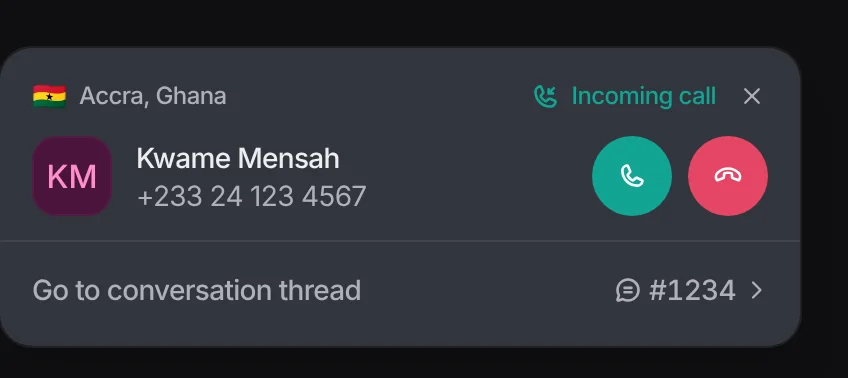
- A ringing call pops up for everyone in the inbox who is set to Online, or only for the assigned person if the chat already has one. The first person to answer takes it, and the chat is assigned to them if nobody had it.
- A call nobody answers within a minute is marked as missed. Missed calls show a Call back button.
- To call a customer, press the phone button on their chat or contact page.
- Rachel steps back from a chat when a call starts, because a call needs a person.
Recordings and transcripts
Calls are recorded and written out as text by default. The recording and transcript show in the chat and on the Calls page. Admins can turn either off on the inbox's Voice or Calls tab.
The Calls page
Calls in the sidebar lists every call in your inboxes. Filter by missed, incoming, outgoing or ongoing calls, by inbox, and (for admins) by team member. Press a call to open its chat.